The Nulea M501 wireless trackball mouse review is for buyers who want to control the cursor with a thumb-operated ball while keeping the mouse itself stationary.
Its multi-device connections and rechargeable design suit compact desks or flexible work spots, while its right-handed shape and fixed button functions narrow the fit.
Nulea M501 Review Summary
The quick verdict
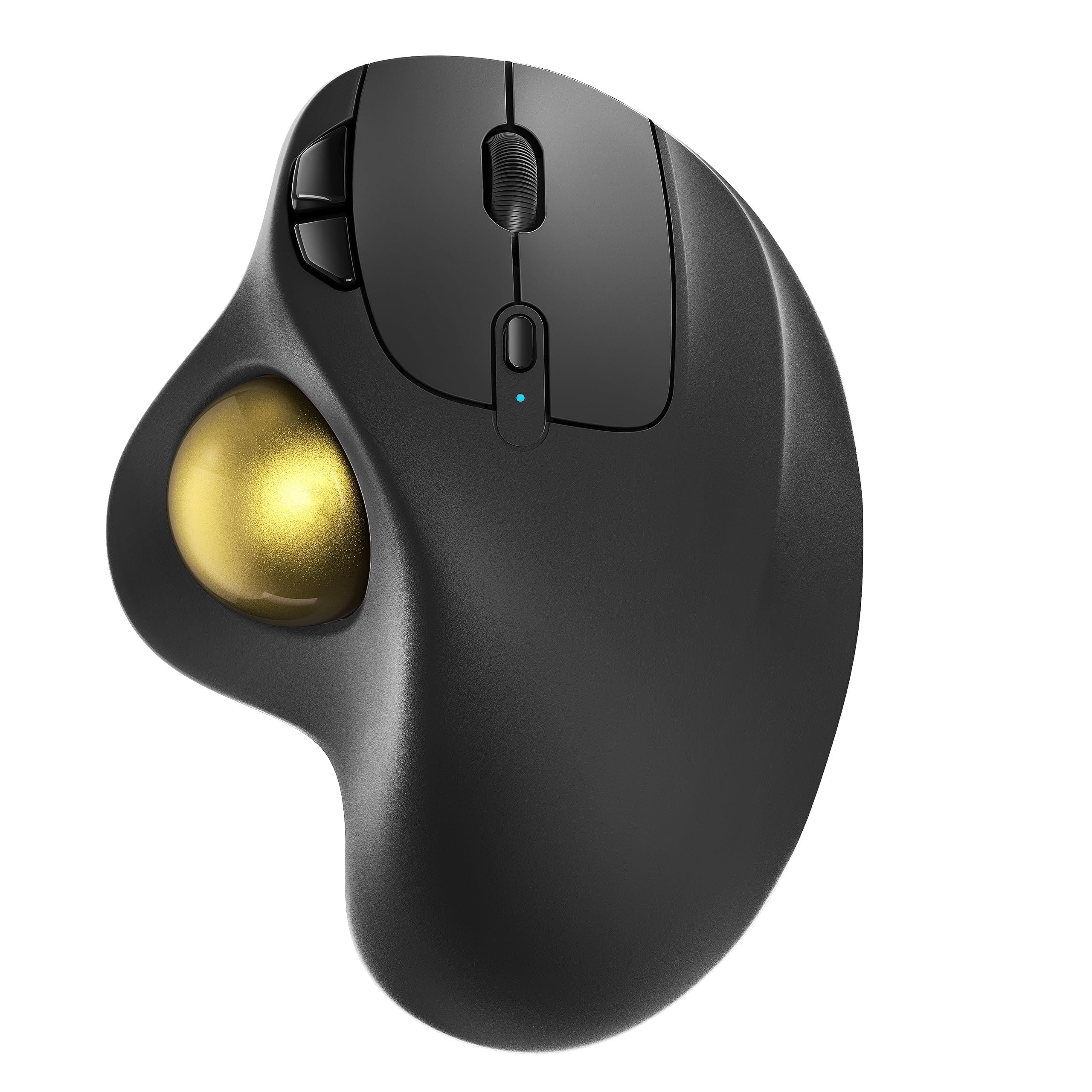
12,000+ ratings
Read Amazon ReviewsNulea M501 Wireless Trackball Mouse
A right-handed thumb-controlled trackball for people who want wireless device switching and cursor control in a compact workspace.
- Thumb-operated trackball controls cursor movement while the mouse remains stationary.
- Right-handed, curved ergonomic design with an angled position intended to support a natural palm posture.
- Bluetooth or included 2.4 GHz USB receiver connectivity; the receiver stores in a compartment on the underside.
- Pair with up to three devices and switch using the button on the bottom.

Pros
- Stationary operation makes it practical for small desks and other surfaces where a moving mouse has little room.
- Offers both Bluetooth and USB receiver connections and can switch among up to three paired devices.
Consider before buying
- The right-handed, thumb-driven layout may not suit left-handed users or people who prefer index-finger trackballs.
- The six buttons cannot be programmed, limiting customization for workflows that rely on assigned shortcuts.
Read the full review summary
The M501 replaces broad mouse movement with thumb control: roll the trackball to move the cursor while the device stays in place.
That design can be convenient when desk space is tight or when working from a couch, bed, or small writing surface.
Its ergonomic angle is intended to keep the palm in a more natural position, though comfort is personal and the right-handed form deserves a fit check before buying.
Bluetooth and a USB receiver provide two connection routes, and the mouse can pair with up to three devices for switching at the bottom-mounted button.
It also has six buttons, including back and forward controls, four DPI levels, and a built-in rechargeable battery. Consider it if those basics match your routine; buyers who need programmable buttons or left-handed use should look elsewhere.
The buying factors
Nulea M501 Scorecard
Editorial scores reflect listed features and buyer fit; they are not laboratory measurements or customer ratings.
Thumb-ball workspace efficiency
The stationary trackball design is well suited to narrow or cluttered surfaces where moving a conventional mouse is awkward.
Connection flexibility
Bluetooth and a USB receiver, plus switching among up to three devices, support a multi-device desk.
Cursor adjustment
Four DPI levels give users a choice of cursor sensitivity, though the description does not specify the individual settings.
Ergonomic fit
The angled, curved right-handed shape and thumb control are designed to limit wrist and arm movement; comfort will depend on hand fit and preference.
Button versatility
Six buttons, including back and forward, cover common navigation, but the buttons are not programmable.
Power convenience
A built-in rechargeable battery avoids disposable cells, with charging guidance to follow for compatibility.
Key Features and Specifications of Nulea M501
- Thumb-operated trackball controls cursor movement while the mouse remains stationary.
- Right-handed, curved ergonomic design with an angled position intended to support a natural palm posture.
- Bluetooth or included 2.4 GHz USB receiver connectivity; the receiver stores in a compartment on the underside.
- Pair with up to three devices and switch using the button on the bottom.
- Four adjustable DPI levels for choosing cursor sensitivity.
- Six buttons, including back and forward controls; buttons are not programmable.
- Built-in rechargeable battery. The included cable is recommended, and charging guidance specifies a computer USB port or 5V charger rather than a fast charger.
Pros and Cons of Nulea M501
Pros
- Stationary operation makes it practical for small desks and other surfaces where a moving mouse has little room.
- Offers both Bluetooth and USB receiver connections and can switch among up to three paired devices.
- Four DPI levels and six buttons provide useful everyday cursor and navigation controls.
- Rechargeable battery means no dry-cell replacement routine.
Consider before buying
- The right-handed, thumb-driven layout may not suit left-handed users or people who prefer index-finger trackballs.
- The six buttons cannot be programmed, limiting customization for workflows that rely on assigned shortcuts.
- Charging instructions rule out fast chargers; buyers should have a suitable USB port or 5V charger available.
Who Should Buy Nulea M501?
Good fit
Consider the M501 if you want a stationary pointing device for a cramped desk, couch-side setup, or another surface where moving a mouse is inconvenient.
The thumb-operated ball keeps cursor control within the mouse’s footprint, and the angled shape is designed for a more natural palm position.
If possible, choose it with a return option that lets you assess whether the thumb reach and hand posture suit you.
It is also a practical match for people who switch among a few computers or other devices. Bluetooth and the included USB receiver offer connection choices, while the underside button handles switching between up to three devices.
Four DPI levels and back and forward buttons add useful control without a complicated setup.
The rechargeable battery is appealing if you prefer to avoid replacing dry cells. Follow the stated charging guidance: use the included cable and a computer USB port or 5V charger, not a fast charger.
Check that this fits the charging equipment you already keep nearby.
Who should skip it
Skip this model if you need a mouse designed for left-handed use, or if you already know that thumb-operated trackballs feel awkward.
Its shape is specified for the right hand, so a more suitable layout should take priority over its connection options.
Look elsewhere if configurable buttons are central to your workflow. The M501’s six buttons include back and forward controls, but they are not programmable.
What the Nulea M501 Means for Your Setup
Stationary control for tight spaces
The M501’s ball moves the cursor without requiring the mouse body to travel across a surface.
That can make it easier to work on a narrow writing board or a crowded desk, and may help when using a couch or bed as a work surface.
It still needs a stable place to rest, and users need to learn the thumb movement that replaces conventional mouse motion.
A right-handed ergonomic approach
The curved form and angled position are intended to let the palm rest naturally while the thumb handles cursor movement.
This design may reduce how much the wrist and arm need to move, but it does not guarantee comfort for every hand.
Buyers with a history of discomfort should pay attention to the shape and thumb reach rather than assuming that an ergonomic label ensures a good fit.
Switching between devices
Bluetooth and the USB receiver give the M501 two wireless connection methods, and the bottom control can switch among as many as three devices. The receiver’s underside storage is useful when packing it away.
Because switching happens from the bottom, consider whether reaching underneath fits the way you move between devices during the day.
Controls and charging routine
Four DPI levels let users choose among cursor sensitivities, and the back and forward buttons can support common browsing navigation. The six controls are fixed rather than programmable, so they may not cover specialized shortcuts.
For charging, keep a computer USB port or 5V charger available and follow the guidance against fast chargers.
Alternatives to Nulea M501
Computer Trackballs alternative
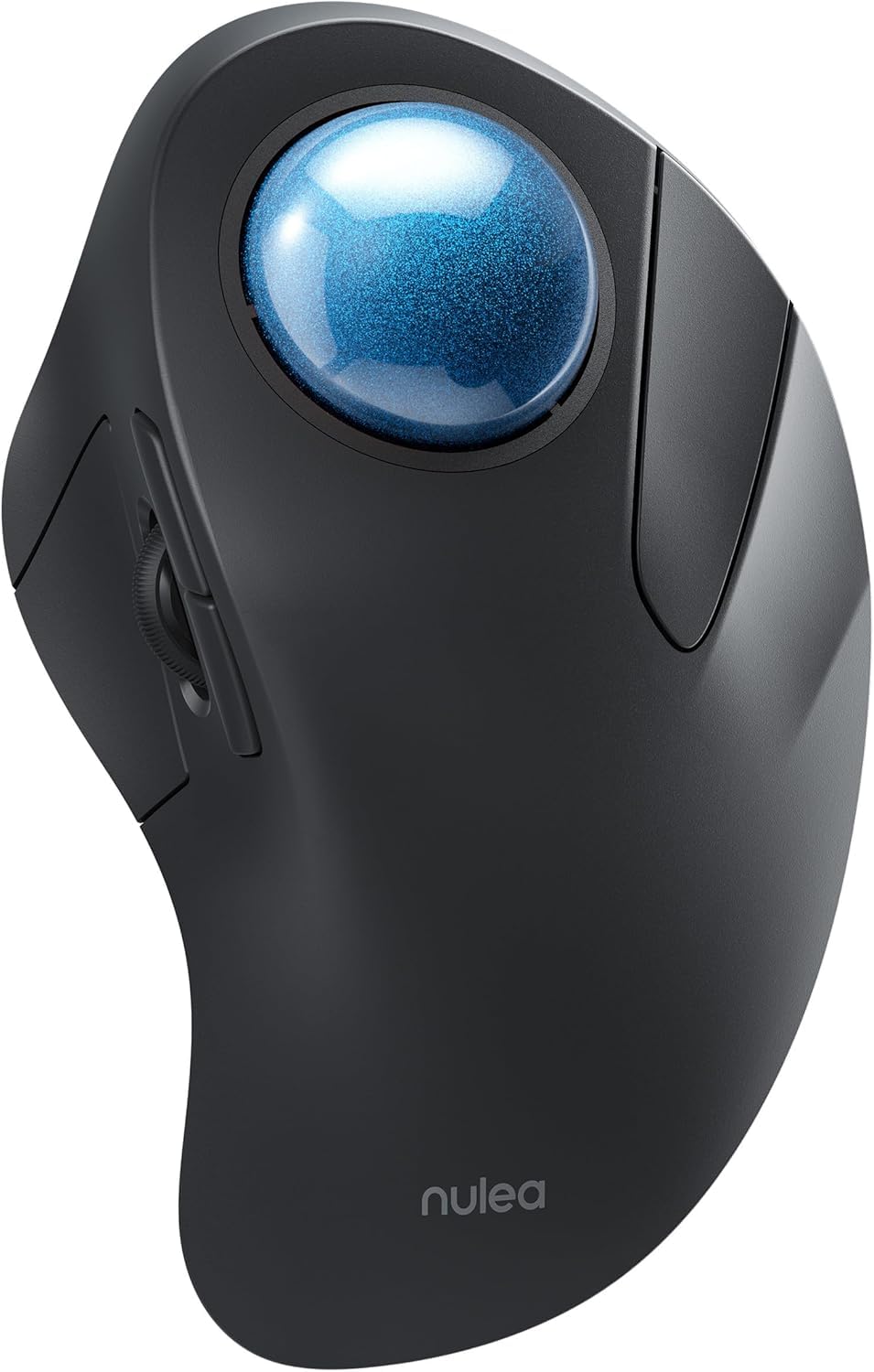
2,000+ ratings
Read Amazon ReviewsNulea M505A Wireless Trackball Mouse
Choose between them primarily by trackball placement: the M501 is for right-handed thumb control, while the M505A puts the ball under the index finger.
The M505A’s extra DPI mode may appeal if sensitivity choices matter, but its different hand movement is the key distinction.
- The M505A uses a 44 mm index-finger trackball, offers five DPI modes, and has five buttons. Its description also gives compatibility across several device and operating-system types.
- The M501 uses thumb control and has four DPI levels, six non-programmable buttons, and connections for up to three devices.
Computer Trackballs alternative
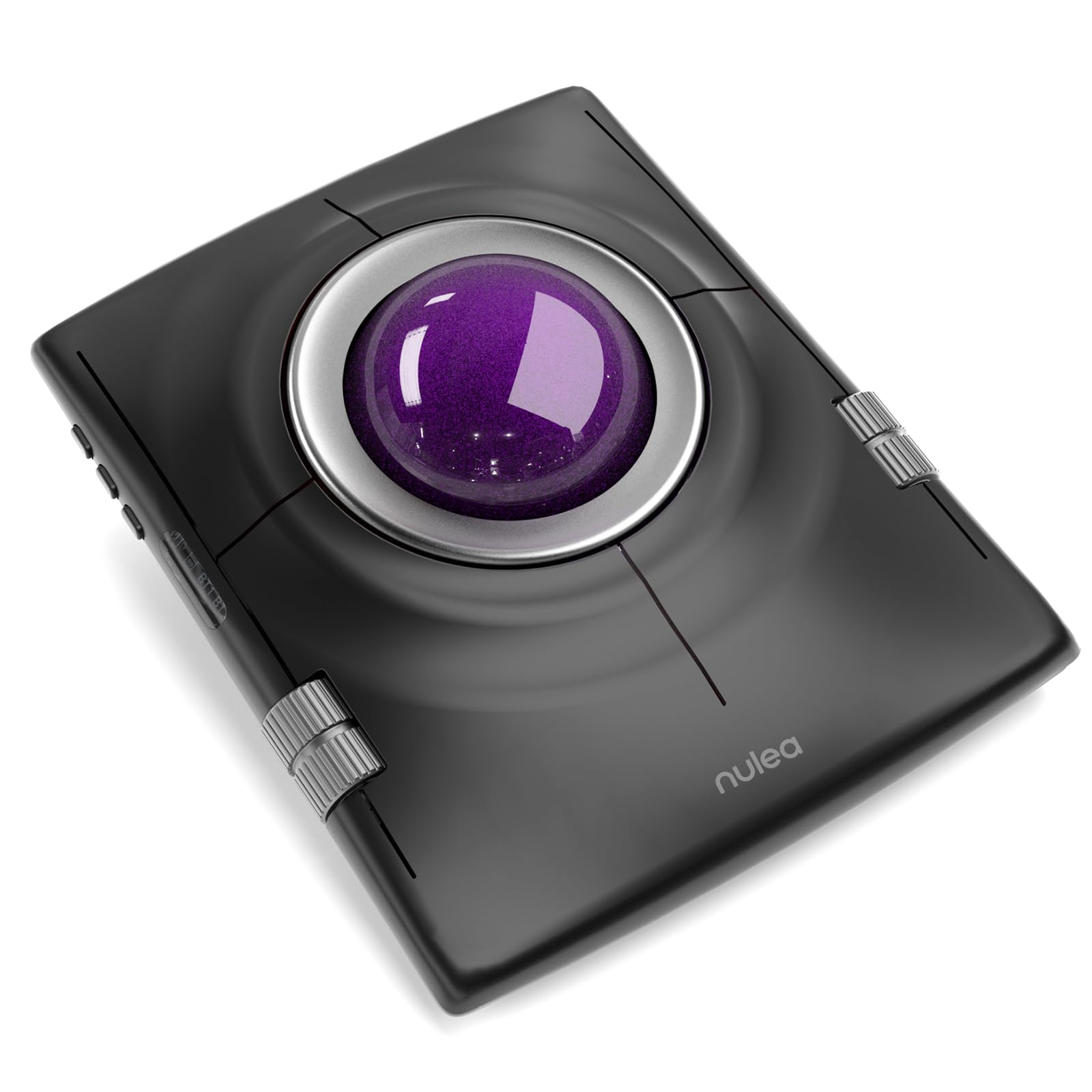
500+ ratings
Read Amazon ReviewsNulea M512 Wireless Trackball Mouse
Consider the M512 if left- and right-handed use, a larger central ball, or a wrist rest better suits your setup.
The M501 is the more direct fit for someone specifically seeking right-handed thumb control; compare the control layout and hand position before choosing.
- The M512 has a 55 mm central trackball and an ambidextrous layout that switches functions for left- or right-handed use.
- It offers four DPI settings, seven buttons, multi-device connections, and an included wrist rest.
- The M501 is a right-handed thumb trackball with six fixed-function buttons and four DPI levels.
Is Nulea M501 Worth It?
The Nulea M501 is worth considering if you want a right-handed thumb trackball that stays put on a small surface, with flexible wireless connections, device switching, and a rechargeable battery.
Its four DPI levels and back and forward buttons cover common controls.
Buy it if the thumb-operated layout suits your hand and fixed buttons meet your needs. Skip it if you need left-handed use or programmable controls, and follow the specified charging guidance.
Your review at a glance
12,000+ ratings
Read Amazon ReviewsNulea M501 Wireless Trackball Mouse
A right-handed thumb-controlled trackball for people who want wireless device switching and cursor control in a compact workspace.
- Thumb-operated trackball controls cursor movement while the mouse remains stationary.
- Right-handed, curved ergonomic design with an angled position intended to support a natural palm posture.
- Bluetooth or included 2.4 GHz USB receiver connectivity; the receiver stores in a compartment on the underside.
- Pair with up to three devices and switch using the button on the bottom.